Desktop Chrome · Early access
Your next read,
one click away.
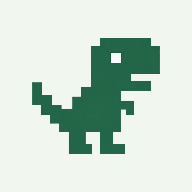
Pin the ReadRex dinosaur. Click it on an article to save to Up next, ready for later.
Download the extensionSet up in five steps
You’ll need Chrome on a computer. This early-access version installs locally; it is not yet listed in the Chrome Web Store.
- Download and unzip. Keep the extension folder somewhere permanent on your computer.
- Open Chrome’s extensions page. Enter
chrome://extensionsin the address bar and turn on Developer mode. - Load the extension. Click Load unpacked and select the folder containing
manifest.json. - Pin the dinosaur. Open Chrome’s Extensions menu and pin ReadRex — Save for later.
- Sign in and save. Sign in to ReadRex in the same Chrome profile. Open an article and click the dinosaur. A little hop and “Saved” confirm it’s in your library.
Using your phone? See iPhone, iPad, and Android setup.
Your reading, your choices
New saves follow your default visibility and start private unless you choose otherwise. Change this in Profile → Reading & feed preferences. Existing reads keep their privacy and progress when saved again.
Up next is your queue. Finished is your reading history. Recommended contains only reads you explicitly endorse to approved friends.
Permissions & privacy
The extension accesses the current page’s URL and title when you click it, and connects only to readrex.com using your existing session. It does not collect browsing history or copy your password.
Read the privacy policy →Having trouble saving?
Saving is confirmed only after ReadRex responds. If sign-in expires, sign in again in the same Chrome profile, return to the article, and retry. Browser cookie restrictions may prevent the connection; you can still copy the link and use Save something in the web app.
Get help →